

Updated 9 months ago
Manage your tasks
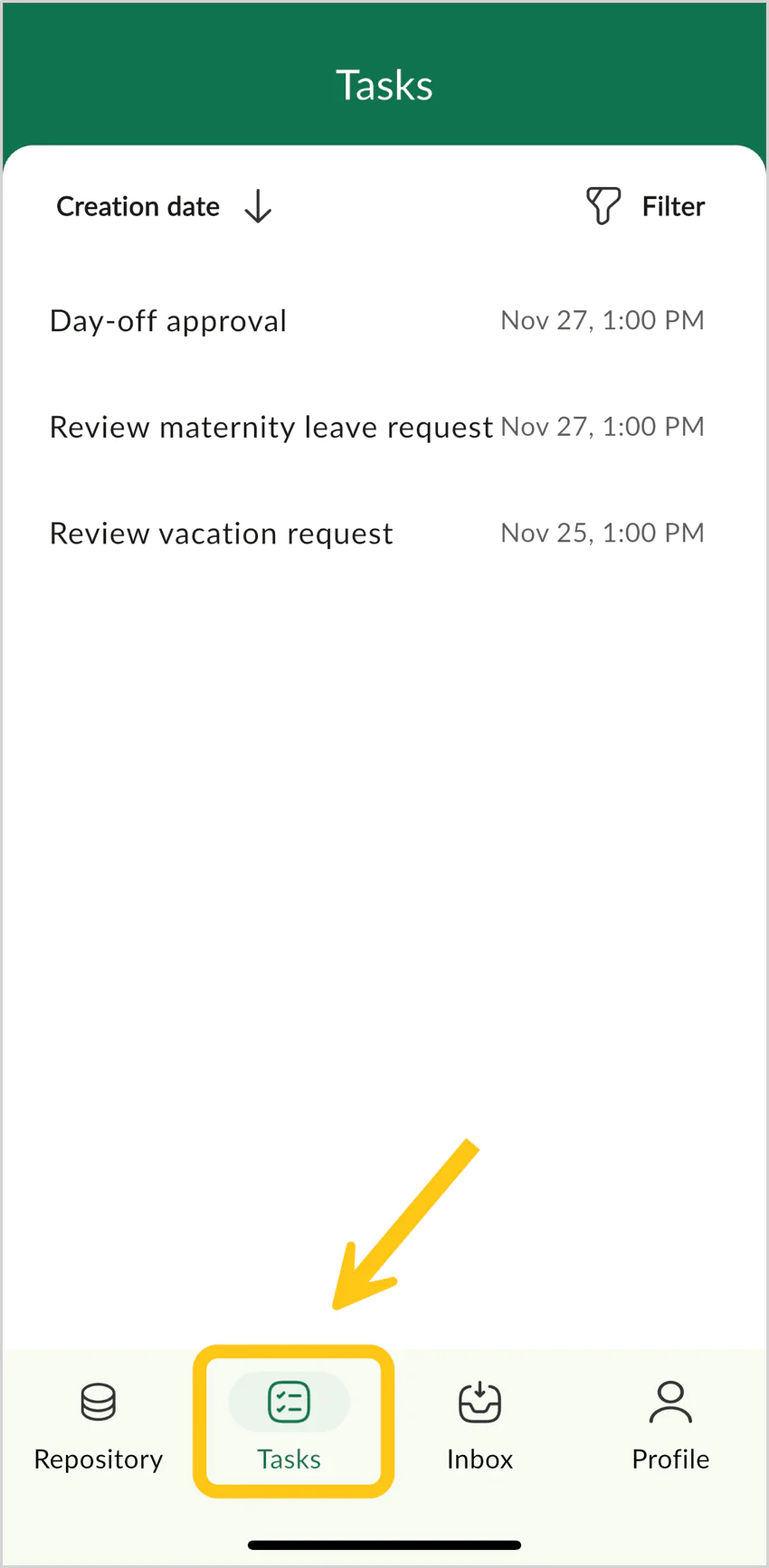
All actions related to tasks are available in the Tasks tab. Here you can view tasks that are a part of business processes (configured by your administrator) as well as manual tasks created in the desktop version.
Note: You cannot create or edit tasks in the mobile application. Use the desktop version for these actions.
View your tasks
By default, the Tasks tab displays only your active tasks — those where you are the assignee. This view corresponds to the My Tasks shortcut in the desktop version.
View all tasks
By adjusting the filters in the Tasks tab, you can view tasks where you have other roles (not only Assignee).
Complete task
-
Open the Tasks tab, and then select the task you want to complete.

-
In the bottom part of the screen, select Actions.

-
Select Complete.

Note: You might see other actions instead of Complete. These actions are configured by the administrator in the Task Form.


Table of Contents
