

Find folders and documents
Sort items
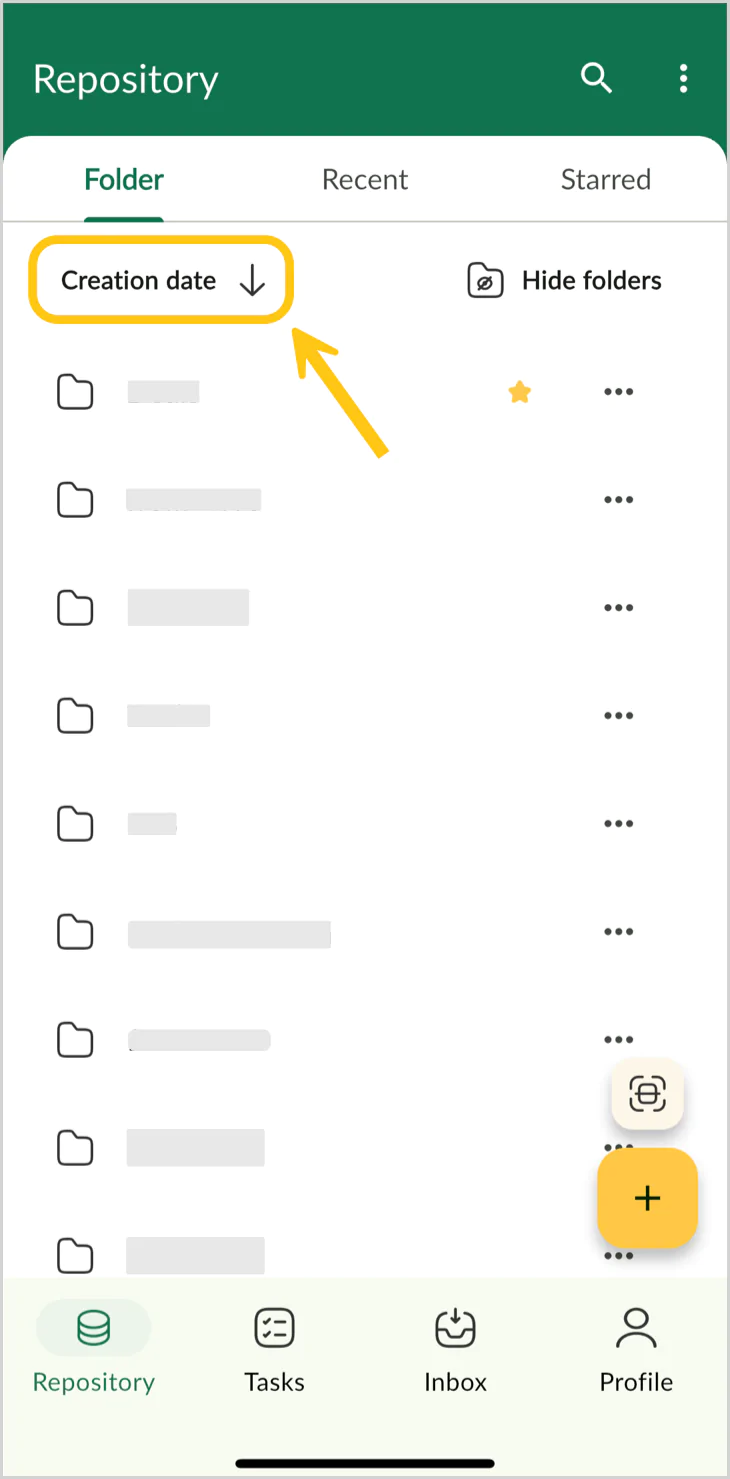
You can sort items by column within a tab. By default, items are sorted by creation date in descending order.
- Go to any tab that supports sorting (for example, Repository, Tasks, or Inbox).
-
Select the table header to open the sorting menu.

-
In the Sort by section, select the criteria you want to sort by.

-
Select the chosen criteria again to switch the order: Ascending (from A to Z) or Descending (from Z to A).



Filter items
You can filter tasks in the Tasks tab. For example, you can show only the tasks whose due date is today.
- Go to the Tasks tab.
-
In the upper-right corner, select Filter.

- In the If box, select the needed criteria (for example, Creation date).
- In the Condition box, select the needed condition (for example, On date).
-
In the Criteria box, enter or select the needed value (for example, pick today’s date from the calendar).

Note: To add more conditions, select Add condition at the bottom of the current filter.

-
Select Apply.


Search documents
Use search to find the needed documents by their contents, name, or any other criteria.
Note: You can search only within the Repository tab, and the search applies to documents only (not folders).
- Go to the Repository tab.
- In the upper-right corner, select the Search icon.
-

-
In the Search box, enter a keyword.

-
In the Filters section, set additional search parameters:
- Folder — select Entire repository or select the needed folder.
- Document Type — filter by document type.
- Modified date — narrow results by modification date range.
- Modified by — filter by specific users who modified documents.

Notes:
- These filters are always part of the search criteria. They cannot be disabled, but you can change their values.
-
To add more conditions, select Add filters at the bottom of the current filter.

-
Select the Search button.


Tip: You can also save search criteria using Saved searches to quickly reuse them later.
Saved searches
With Saved searches, you can quickly access frequently used search criteria without having to recreate complex queries each time.
Save new search
- Set up the search parameters as described above in the Search documents chapter.
-
Select Save search.


Edit saved search parameters
Note: To edit your saved search, ask your platform Admin.
Share saved search
Note: All saved searches you create will be visible only to you and your platform Admin. To share your search with other users, ask your platform Admin.
Use saved search
- Go to the Repository tab.
-
In the upper-right corner, select the Search icon.

-
Select the Saved searches sub-tab.

-
Select the needed search. The system will display results that match the saved search parameters.


View recent items
To view recently modified files:
- Go to the Repository tab.
-
Open the Recent sub-tab.


