

Work with folders
Show or hide folders
Control the visibility of folders in your document view to simplify navigation and focus on specific content.
To show folders, select the 
 icon on the action bar. Both documents and folders will become visible.
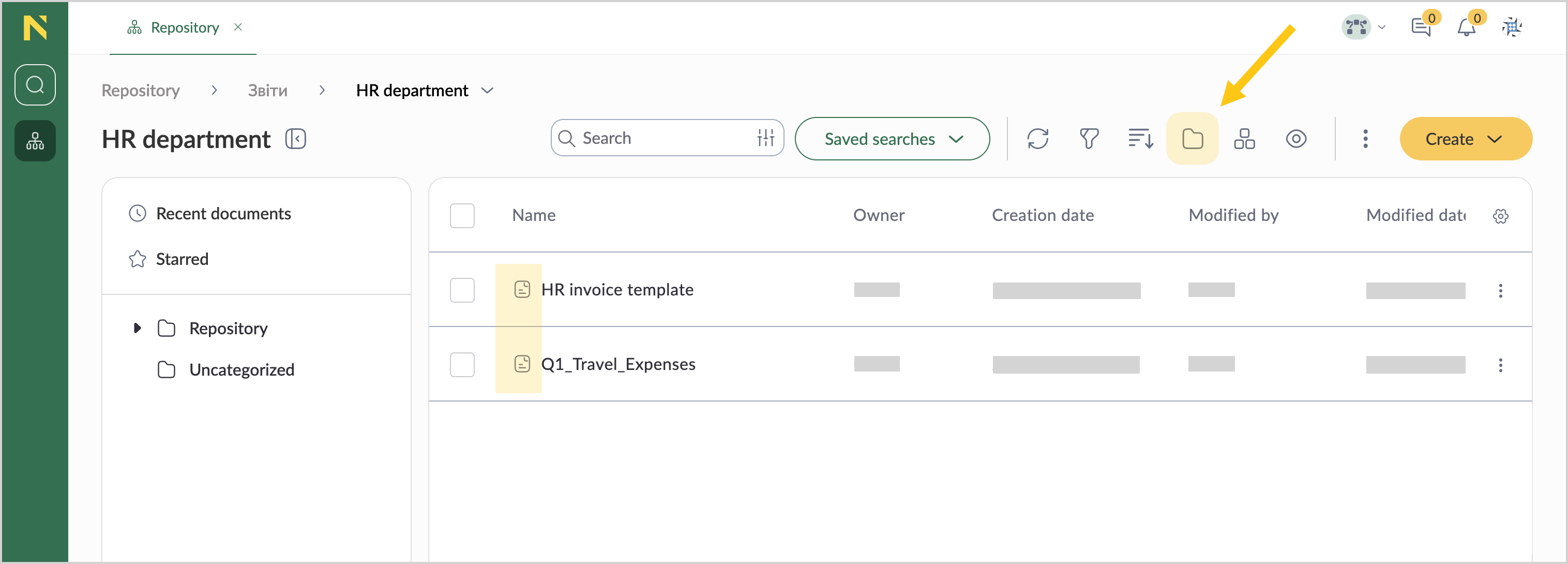

To hide folders, select the 
 icon on the action bar. Only documents will remain visible.


Show or hide folder tree
To show the folder tree, select the 
 icon.
icon.

To hide the folder tree, select the 
 icon.
icon.


Create new folder
You can create new folders only within folders where you have the appropriate access rights: Folder Admin or Editor roles.
Note: Only admin can create folders inside the Repository folder.
1. To select a location for your folder, in the folder tree, select the needed folder.

2. On the action bar, select the Create button 
 , and then select
 New folder
 .
.

3. In the Folder Name box , enter a descriptive name for your folder.
4. Under Allowed document types , select one:
-
-
- Allow all document types — no restrictions on document types
- Select allowed document types — choose specific types from the dropdown list
-
5. Optional: In the Labels box 
 , select labels to help organize and find your folder. See also Create folder label.

6. Go to the Table columns tab , to configure the document table view.
7. Add columns by either:
-
-
- Dragging attributes from Attributes to Selected pane.
- Double-clicking attributes in the Attributes pane.
-


To reorder columns, select the 
 icon and drag a column up or down.


8. Go to the Access tab , to set up folder permissions.
9. In the Inherit permissions section , select one of the following options:
-
-
- Inherit parent folder permissions — use the same permissions as the parent folder.
- Set custom permissions — define specific access rights.


-
10. If setting custom permissions:
a. Optional: In the type toggle, select one of the following user entities, to filter the search results:
-
-
-
- Users group — a collection of users grouped.
- System roles — built-in roles that define system-wide permissions.
- Users — individual user accounts in the system.
- Internal Organizations — all the organization members.
- Departments — organizational units within your organization.
- Positions — job titles within your organization.
- Executors Groups — can be groups of positions, departments, or internal organizations.
-
-
b. In the Search box, enter the name of the user entity.
c. From the Role dropdown list, select one of the following roles:
-
-
-
- Folder admin — can edit, move, share, copy, download, delete, create content and customize accesses in this folder.
- Editor — can create new documents and folders, can operate with existing documents: viewing, editing, form filling.
- Document creator — can edit, move, share, copy, download, delete and create folders and files within their own folder.
- Viewer — can view folders and documents.
-
-


11. Select the Save button.


Delete folder
1. Hover over a folder, and then select the icon .
2. Select  Delete .


Note: To delete several folders at once, use the Multiselect feature.
3. Confirm deletion by clicking the Yes button.


Rename folder
1. Hover over a folder, and then select the icon .
2. Select Rename .


3. In the Name box , enter a new name for your folder.
4. Select the Save button .


Note: The folder name must be unique within its location.
Move folder
1. Hover over a folder, and then select the icon .
2. Select  Cut .
Cut .


Note: To move several folders at once, use the Multiselect feature.
3. Select the destination folder where you want to locate the folder.
4. Select the icon , and then select  Paste .

Duplicate folder
1. Hover over a folder, and then select the icon .
2. Select  Copy .


3. Select the destination folder where you want to locate the copied folder.
4. Select the icon , and then select Paste .

View folder properties
1. Select a folder .
2. In the top menu, select the 
 icon to show a preview.


3. On the right side, the Details tab will open.


Download folder
1. Hover over a folder, and then select the icon .
2. Select  Download .


Note: To download several folders at once, use the Multiselect feature.
Edit folder
1. Hover over a folder, and then select the icon .
2. Select Settings .


3. Make the needed changes , and then select the Save button .


Multiselect feature
Use the multiselect feature to perform actions with multiple items at once.
- Select the checkboxes next to the items you want to modify .
- On the action bar , select the icon for your desired action.

