

Nectain Is Now on n8n: Automate Document Processing Across 2,000+ Apps
Nectain is now available as a verified community node in n8n. You can create documents in Nectain, run AI recognition on files, and send the extracted data to any of the 2,000+ apps n8n connects to, all from one n8n workflow and without writing custom API code.
The node is built and maintained by the Nectain team and verified by n8n. It works on n8n Cloud and on self-hosted n8n. The first version was published in October 2026, and the current version, 0.1.3, came out in November 2026.
Key takeaways
- What it is: an official Nectain node for n8n, the workflow automation platform, listed on the n8n integrations page as a verified community node.
- What it does: 13 actions across four resources: Documents, Document Types, Recognition Jobs and Recognition Templates.
- Why it matters: documents that arrive by email, in cloud storage or from other business systems can go straight into Nectain, get recognized by AI, and the results can flow on to your ERP, CRM, spreadsheets or chat tools.
- Who sets it up: the n8n instance owner or admin installs it once. After that, everyone on the instance can use it.
What’s new: Nectain is a verified n8n node
Until now, connecting Nectain to tools outside the Microsoft 365 and Google ecosystems usually meant working with the Nectain API directly. With the n8n node, the most common document operations are available as drag-and-drop steps on the n8n canvas.
That matters for two kinds of teams:
- IT and operations teams that already run automations in n8n can now add document management and AI document processing to those workflows.
- Nectain customers who need documents to move between Nectain and other systems (accounting software, a CRM, a ticketing tool, a shared inbox) get a no-code way to build those connections.
Because the node is verified by n8n, it can be installed directly from the nodes panel, including on n8n Cloud, where only verified community nodes are allowed.
What you can do with the Nectain node in n8n
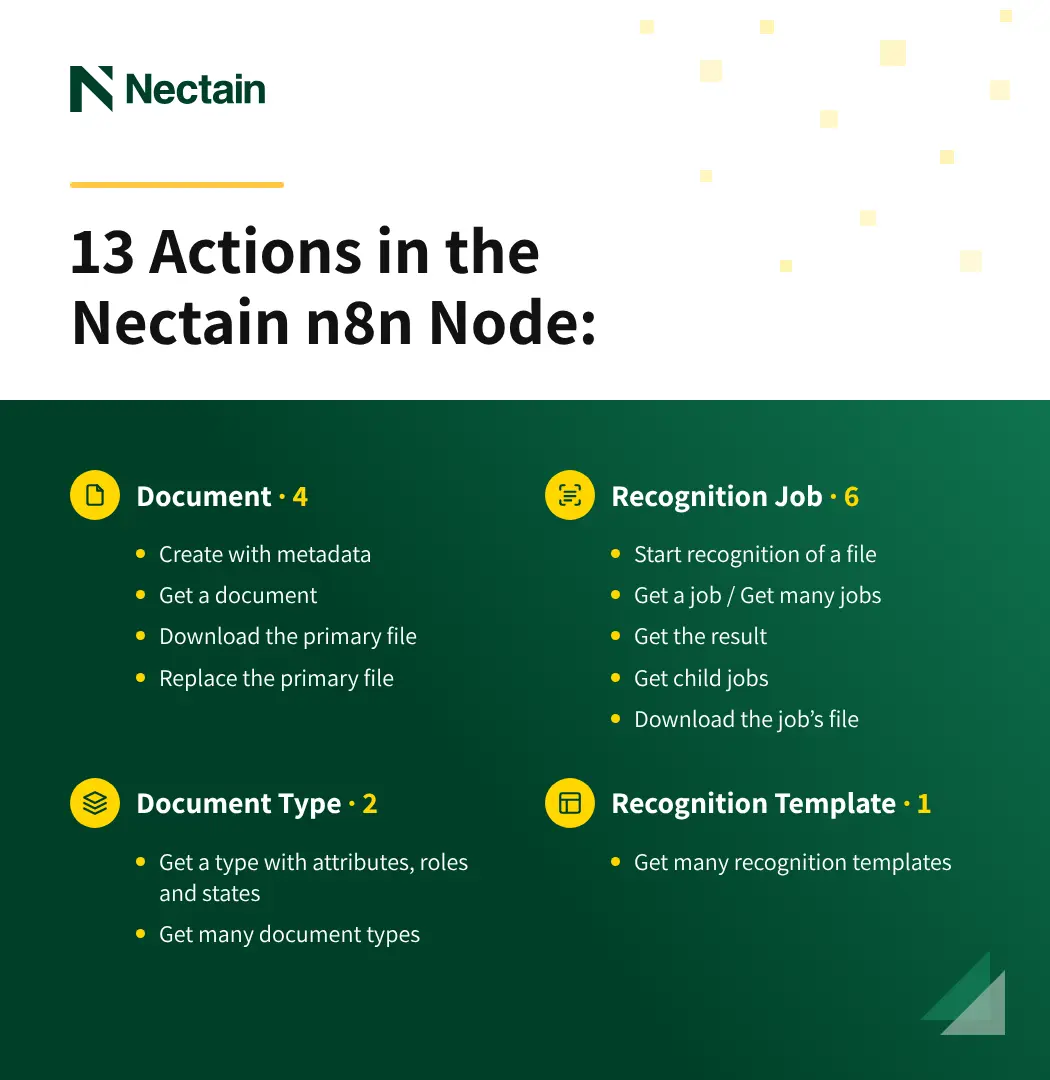
The node covers three jobs: storing documents in Nectain, reading Nectain’s document structure, and running AI recognition on files.
| Resource | Action | What it does |
|---|---|---|
| Document | Create | Creates a document with metadata and an optional primary file |
| Document | Get | Returns a document |
| Document | Download File | Downloads the primary file of a document |
| Document | Replace File | Replaces the primary file of a document |
| Document Type | Get | Returns a document type with its attributes, roles and states |
| Document Type | Get Many | Returns a list of document types |
| Recognition Job | Start | Starts AI recognition of a file |
| Recognition Job | Get | Returns a recognition job |
| Recognition Job | Get Many | Returns a list of recognition jobs |
| Recognition Job | Get Result | Returns the document created or the data extracted by a recognition job |
| Recognition Job | Get Descendants | Returns the nested jobs created from a batch of files or by document splitting |
| Recognition Job | Download File | Downloads the file of a recognition job |
| Recognition Template | Get Many | Returns a list of recognition templates |
Documents: create and update records from any source
Create adds a new document to Nectain together with its metadata, so a file that arrives anywhere in your stack lands in the right place with the right attributes. Replace File updates the file of an existing document when a new version is produced elsewhere. Get and Download File let other systems read a document and its file from Nectain.
Document Types: map fields before you write
Every document in Nectain belongs to a document type with its own attributes, roles and states. Get Document Type returns that structure, so you can map incoming data to the correct fields in n8n instead of hard-coding them.
Recognition Jobs: AI document processing inside your workflow
This is where Nectain’s intelligent document processing comes into n8n. Start sends a file for recognition using one of your recognition templates. Get Result returns either the document Nectain created or the structured data it extracted, such as invoice numbers, dates, amounts or contract parties. Your workflow can then use those fields in the next steps.
Get Descendants helps when one job turns into several. If you send a batch of files, or your recognition template splits one file into separate documents, each document gets its own child job. A batch combined with splitting creates two nested levels. Get Descendants returns all of them, so your workflow can handle each document on its own.
If all you need is text pulled out of a file, a generic OCR or AI service can do that on its own. The Nectain node is for teams that want the document itself managed: it is stored in Nectain with its document type, access rules and audit trail, and can go straight into your approval workflows.
Example workflows you can build
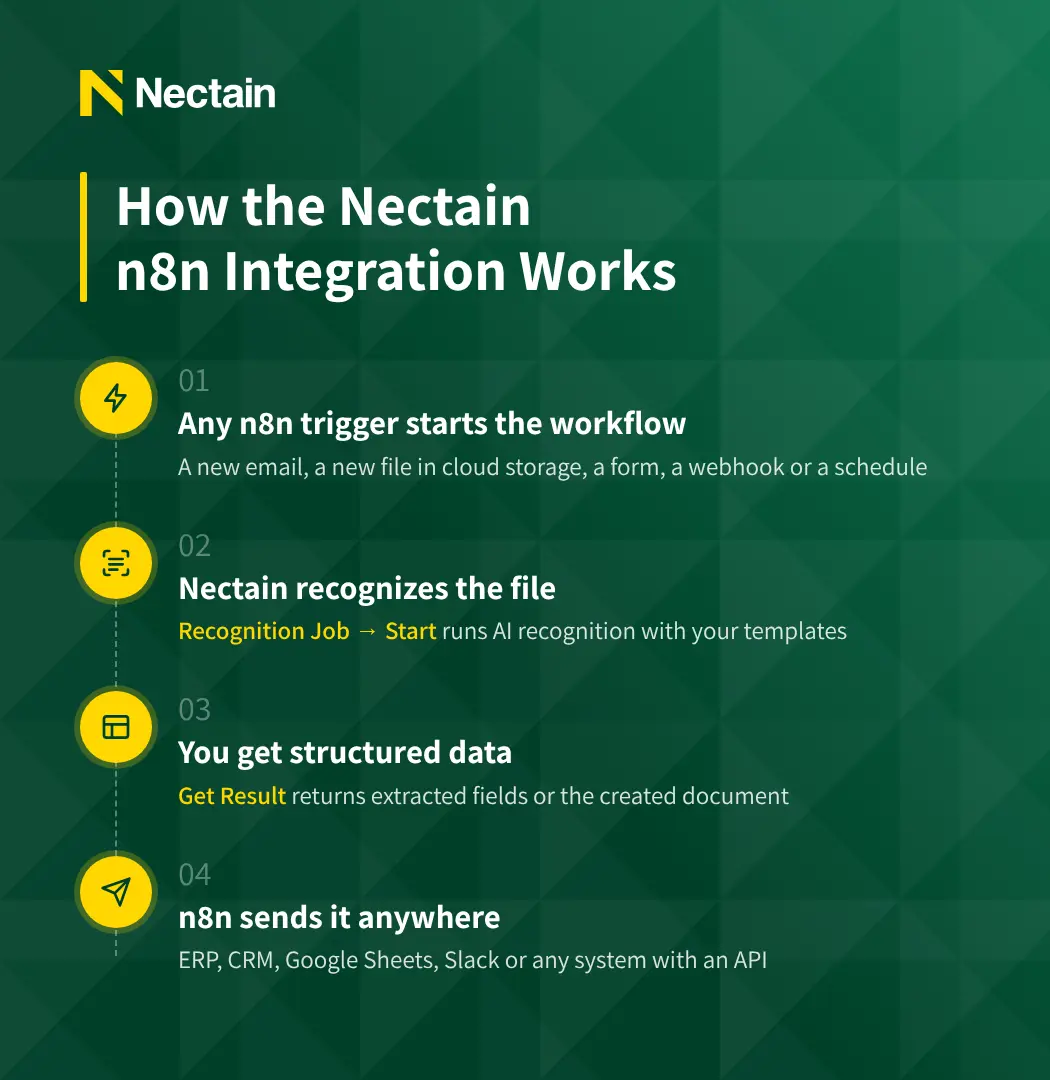
The node has no triggers of its own, so a workflow usually starts with another n8n trigger: a new email, a new file in a folder, a form submission, a webhook or a schedule. Four common patterns:
1. Invoice intake from a shared inbox. A new email in Outlook or Gmail triggers the workflow. The attachment goes to Nectain with Recognition Job → Start, and Nectain stores the invoice as a document with the supplier, invoice number and total already filled in. From there, Nectain’s own approval workflow routes it to the right people, with every step recorded in the audit trail. Nobody has to retype the invoice, and the original never gets lost in someone’s inbox.
2. Contracts from cloud storage. A new file in Google Drive, OneDrive or Dropbox triggers Document → Create in Nectain under the Contract document type. Nectain becomes the system of record, with the same access control and audit trail as any other Nectain document, while people keep saving files where they always have.
3. Extracted data to your CRM or ERP. After recognition, n8n maps the extracted fields to records in your CRM, ERP or a Google Sheet, using the HTTP Request node for any system without a dedicated n8n node.
4. Keeping files in sync. When a signed or updated version of a file is produced in another tool, Document → Replace File updates the document in Nectain, so the latest version always lives in one place.
n8n or Nectain’s built-in workflows: which to use?
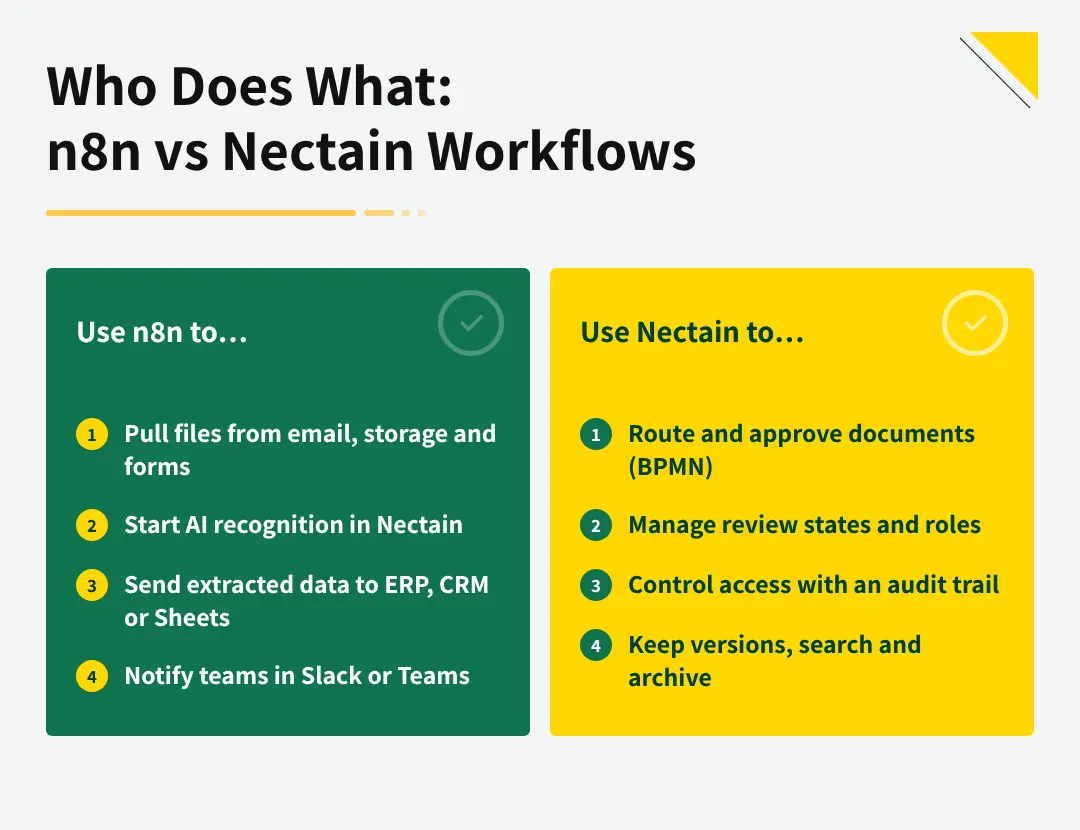
Nectain already includes document workflow automation with a native BPMN process designer, Process Blueprints and AI scenarios. The n8n integration doesn’t replace them. A simple way to split the work:
- Use Nectain workflows for processes that happen around a document inside Nectain: approvals, routing, review states, roles and audit.
- Use n8n to move documents and data between Nectain and other applications: getting files in from email or storage, and sending extracted data out to business systems.
Many teams will use both: n8n brings the document in and starts recognition, and Nectain’s own workflow takes it through approval.
How to set up the Nectain node in n8n
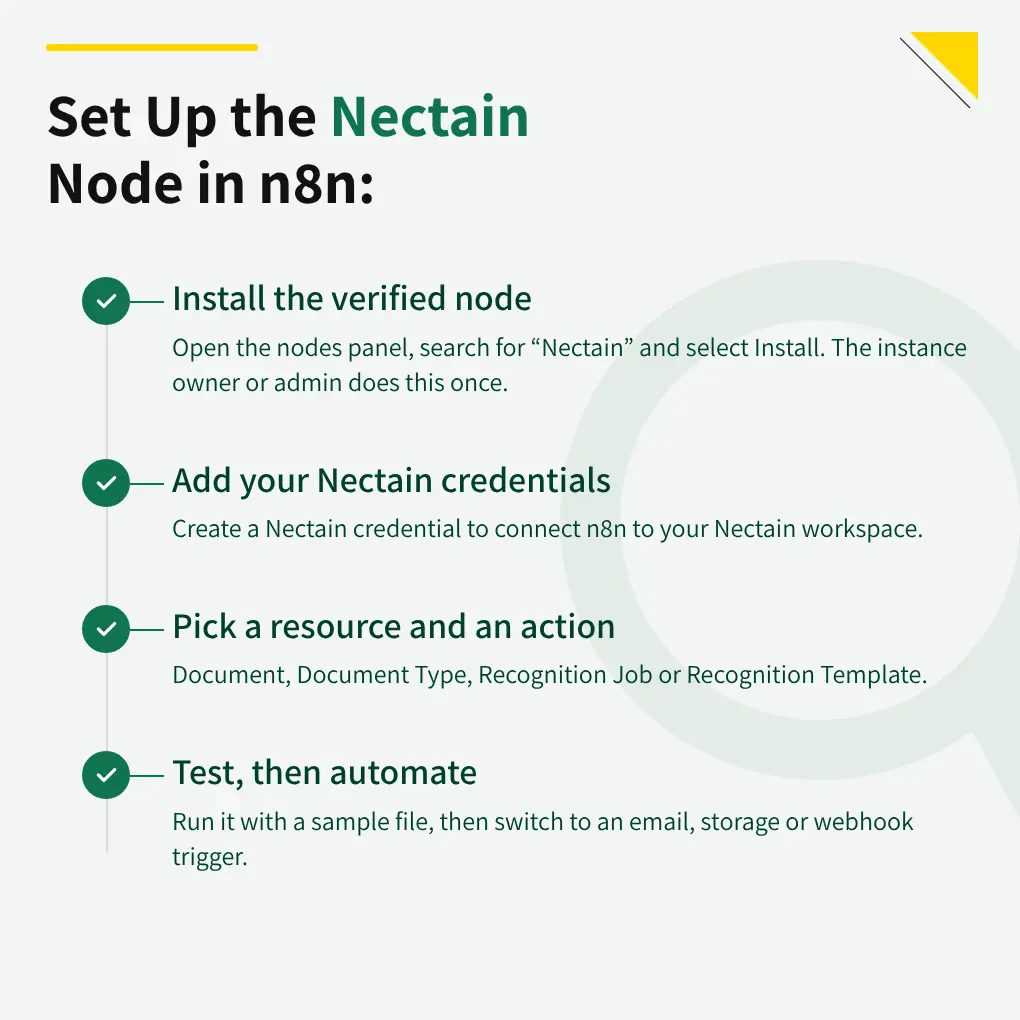
- Install the node. As the n8n instance owner or admin, open the nodes panel on the canvas, search for Nectain and select Install. Verified nodes show a checkmark. Once installed, the node is available to every member of the instance.
- Add your Nectain credentials. Create a Nectain credential in n8n with your Nectain instance URL and API key.
- Add the node to a workflow. Pick a resource (Document, Document Type, Recognition Job or Recognition Template) and an operation.
- Test it. Start with a manual trigger and a sample file, check the output, then replace the trigger with an email, storage or webhook trigger.
Self-hosted n8n users can also install the package n8n-nodes-nectain from Settings → Community Nodes.
What’s next for the Nectain node
This is the first version of the node. It covers the core operations for documents and AI recognition, but not yet everything you can do with documents and tasks inside Nectain. We plan to add more document and task operations in future releases. Triggers, such as starting a workflow when a document is created in Nectain, are on the roadmap too. If there’s an operation your workflow needs, tell our team: requests from users help us decide what to build next.
Try it with your own documents
The Nectain node is available now on the Nectain page in the n8n integrations directory.
Want to connect your Nectain workspace to n8n, or see how it would work with your own documents? Talk to our team.